Auto Settlement Rule
When the Auto Settlement Rule feature setting is enabled, users can create the settlement rule to be associated with reservations/groups/house accounts from the Auto Settlement Rule tab in the Guest Accounting screen. Users can select the payment collection date and the payment method type for which the payments must be collected automatically. Only users with the Stay_AutoSettlement permission can create/modify the settlement rule.
Users can create a new rule by clicking Add in the Auto Settlement Rule tab. When clicked, the Add Auto Settlement Rule pop-up screen appears that displays the following fields:
|
Field |
Description |
|---|---|
|
Code |
|
|
Rule Name |
|
|
Auto Settlement Period |
Select if payments must be collected daily, weekly, monthly, or yearly. |
|
|
Users can choose to email a copy of the folio to the email address associated with the reservation. |
|
Payment Type |
Select from the following payment types using which the payment must be collected:
|
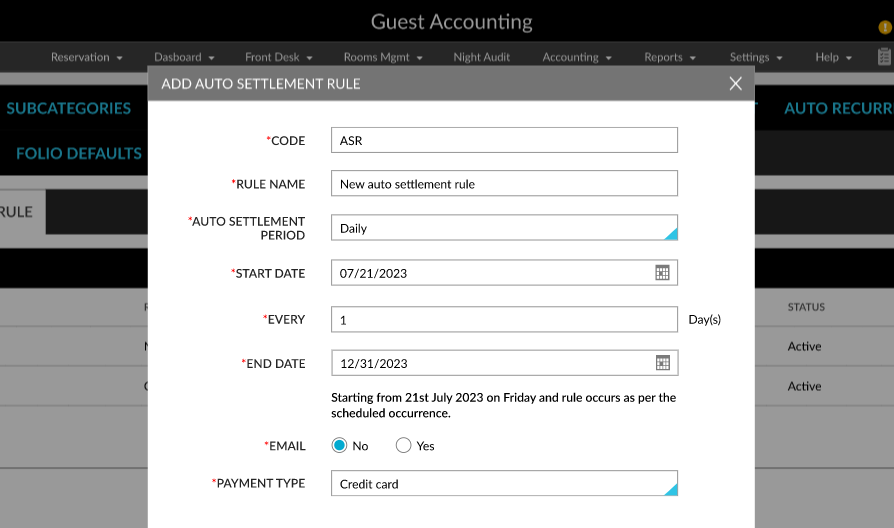
Configuring a Daily Settlement Rule
The following fields are displayed in the Add Auto Settlement Rule pop-up screen when users select the Auto Settlement Period as Daily.
|
Field |
Description |
|---|---|
|
Start Date |
Select a start date for the rule. |
|
Every |
Select the frequency at which the payments must be collected. For example, 2 days. |
|
End Date |
Select an end date for the rule. |
For example, if the Start Date is selected as 01/17/2024 and the End Date is selected as 01/20/2024 for Every 2 days, payments will be collected automatically between the selected dates for every 2 days using the selected Payment Type.
Configuring a Weekly Settlement Rule
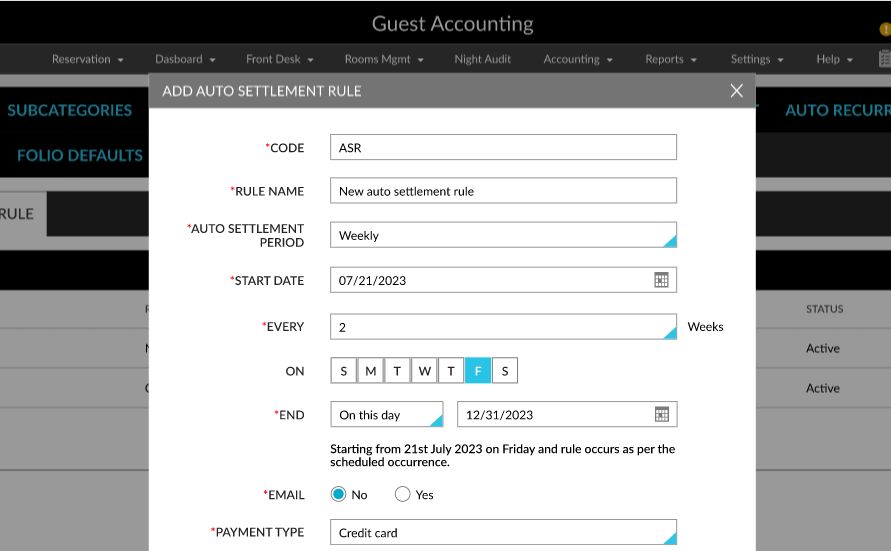
The following fields are displayed in the Add Auto Settlement Rule pop-up screen when users select the Auto Settlement Period as Weekly.
|
Field |
Description |
|---|---|
|
Start Date |
Select a start date for the rule. |
|
Every |
Select the frequency at which the payments must be collected. For example, 2 weeks. |
|
On |
Users must select the preferred day of the week on which the payments must be collected. For example, Monday. |
|
End Date |
Users must select from the following options to set an end date for the rule:
|
For example, if the Start Date is selected as 01/17/2024 and the End Date is selected as After 2 Occurrences for Every 2 weeks, payments will be collected automatically from 01/17/2024 for every 2 weeks on Monday for 2 occurrences using the selected Payment Type.
Configuring a Monthly Settlement Rule
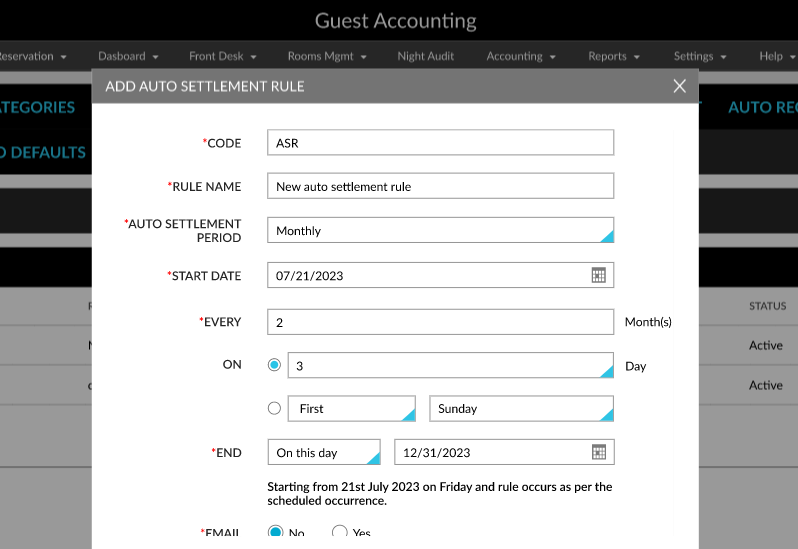
The following fields are displayed in the Add Auto Settlement Rule pop-up screen when users select the Auto Settlement Period as Monthly.
|
Field |
Description |
|---|---|
|
Start Date |
Users must select a start date for the rule. |
|
Every |
Users must select the frequency at which the payments must be collected. For example, 2 months. |
|
On |
Users must select the preferred day of the month on which the payments must be collected. Users can select from the following options:
|
|
End Date |
Users must select from the following options to set an end date for the rule:
|
For example, if the Start Date is selected as 01/17/2024 and the End Date is selected as After 2 Occurrences for Every 2 months On the 10th day of the month, payments will be collected automatically from 01/17/2024 for every 2 months on the 10th day of the month for 2 occurrences using the selected Payment Type.
Configuring a Yearly Settlement Rule
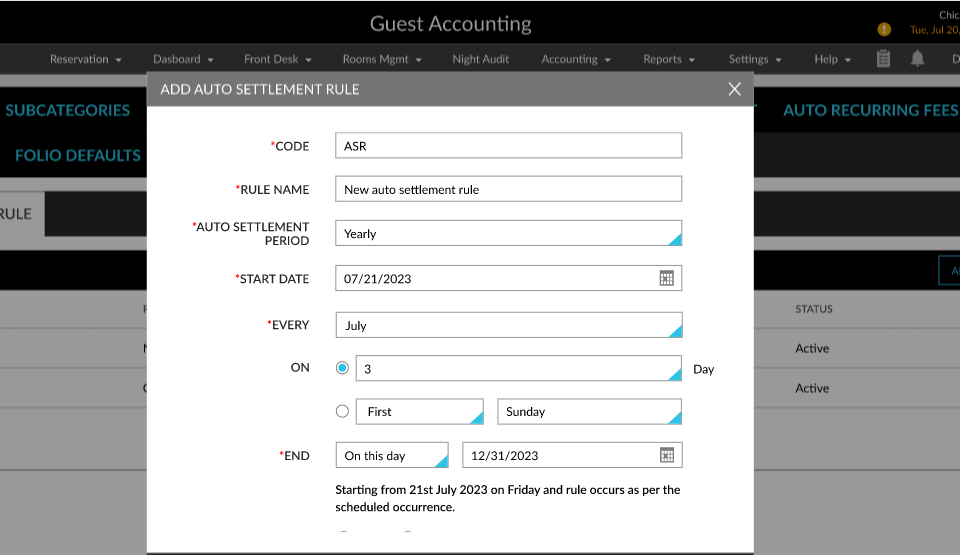
The following fields are displayed in the Add Auto Settlement Rule pop-up screen when users select the Auto Settlement Period as Yearly.
|
Field |
Description |
|---|---|
|
Start Date |
Users must select a start date for the rule. |
|
Every |
Users must select the frequency at which the payments must be collected. For example, January. |
|
On |
Users must select the preferred day of the month on which the payments must be collected. Users can select from the following options:
|
|
End Date |
Users must select from the following options to set an end date for the rule:
|
For example, if the Start Date is selected as 07/21/2023 and the End Date is selected as On this day - 12/31/2023 for Every July On the 3rd day of the month, payments will be collected automatically from 07/21/2023 every July on the 3rd day of the month up to 12/31/2023 using the selected Payment Type.
The following columns are displayed in the Auto Settlement Rule tab in the Guest Accounting screen for the created rule:
-
Rule Code
-
Rule Name
-
Auto Settlement Period
-
Payment Method
-
Email Required
-
Status
Users can modify a rule by clicking the Rule Code hyperlink. When clicked, the Edit Auto Settlement Rule pop-up screen appears where users can modify all the details except the code.